If your school would like to add a new student license or licences to your existing ReadingDoctor® Online account (i.e. you are using all of your student licences, and you want to increase the number of students who can use the program simultaneously), please contact us to increase your subscription size.
If you are your school's ReadingDoctor® Online administrator, and you already have spare student license(s) that you would like to allocate to a new student or students, please:
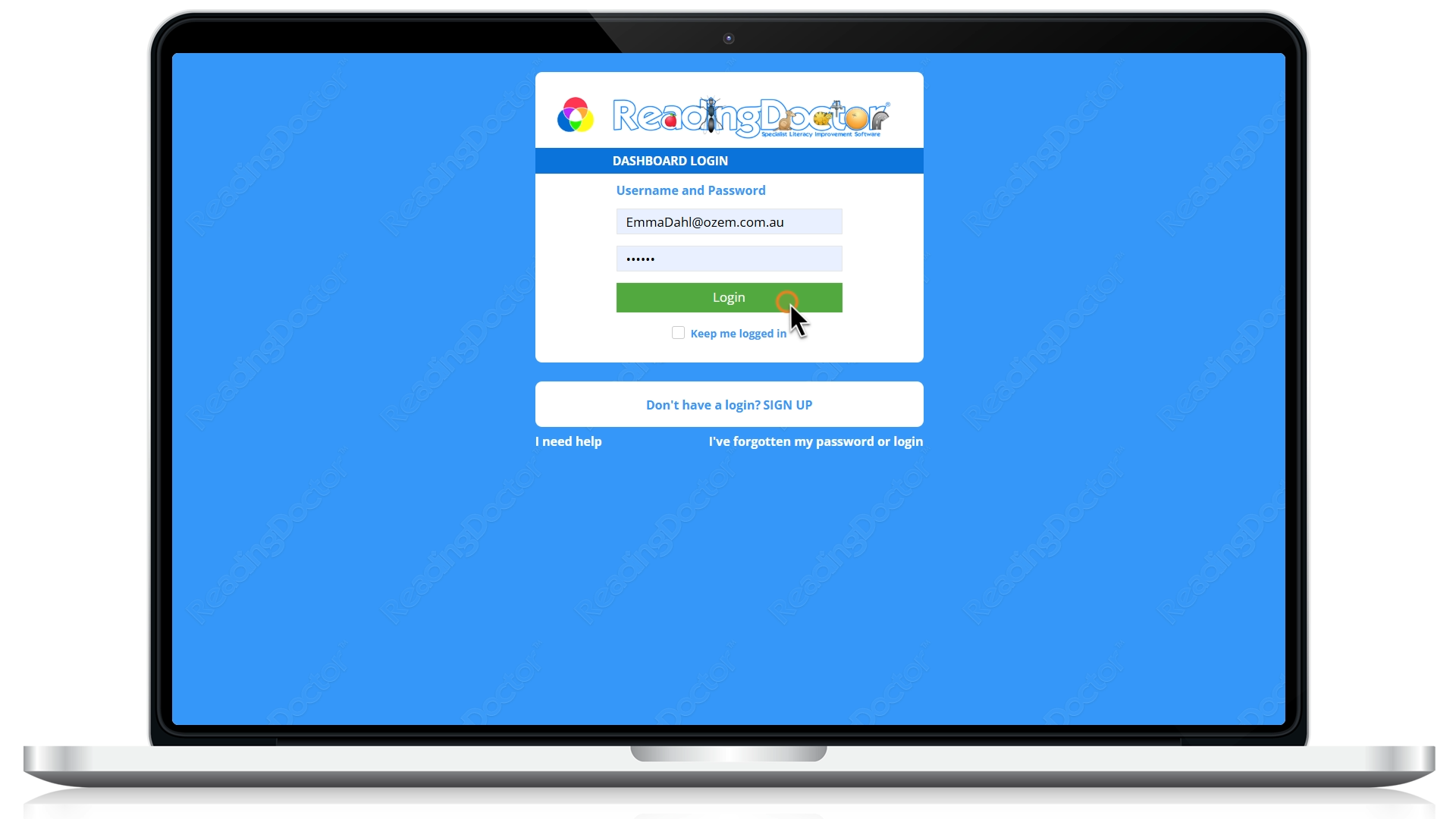
- Log in to the ReadingDoctor® Dashboard: https://dashboard.readingdoctor.com
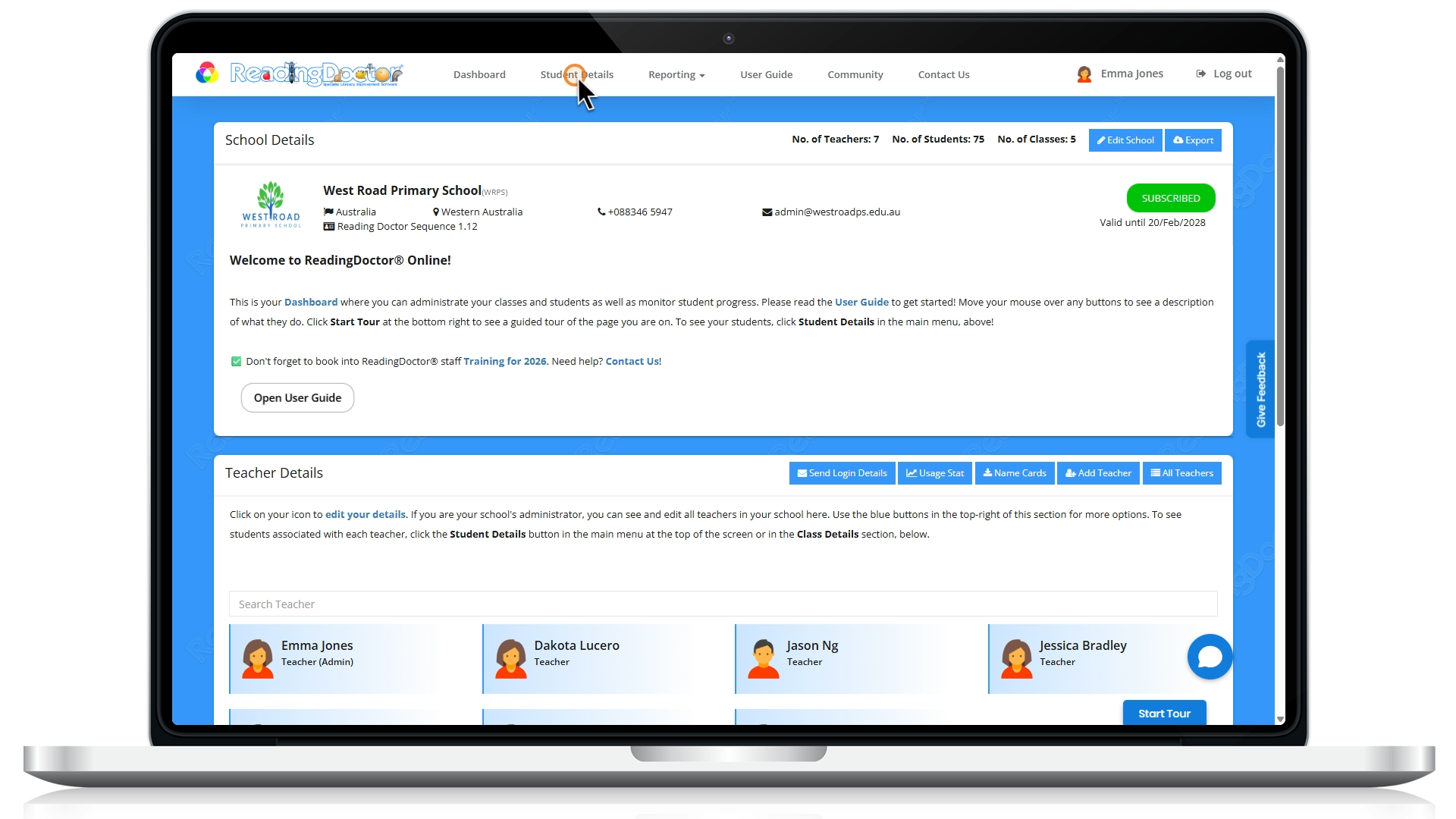
- Click Student Details:
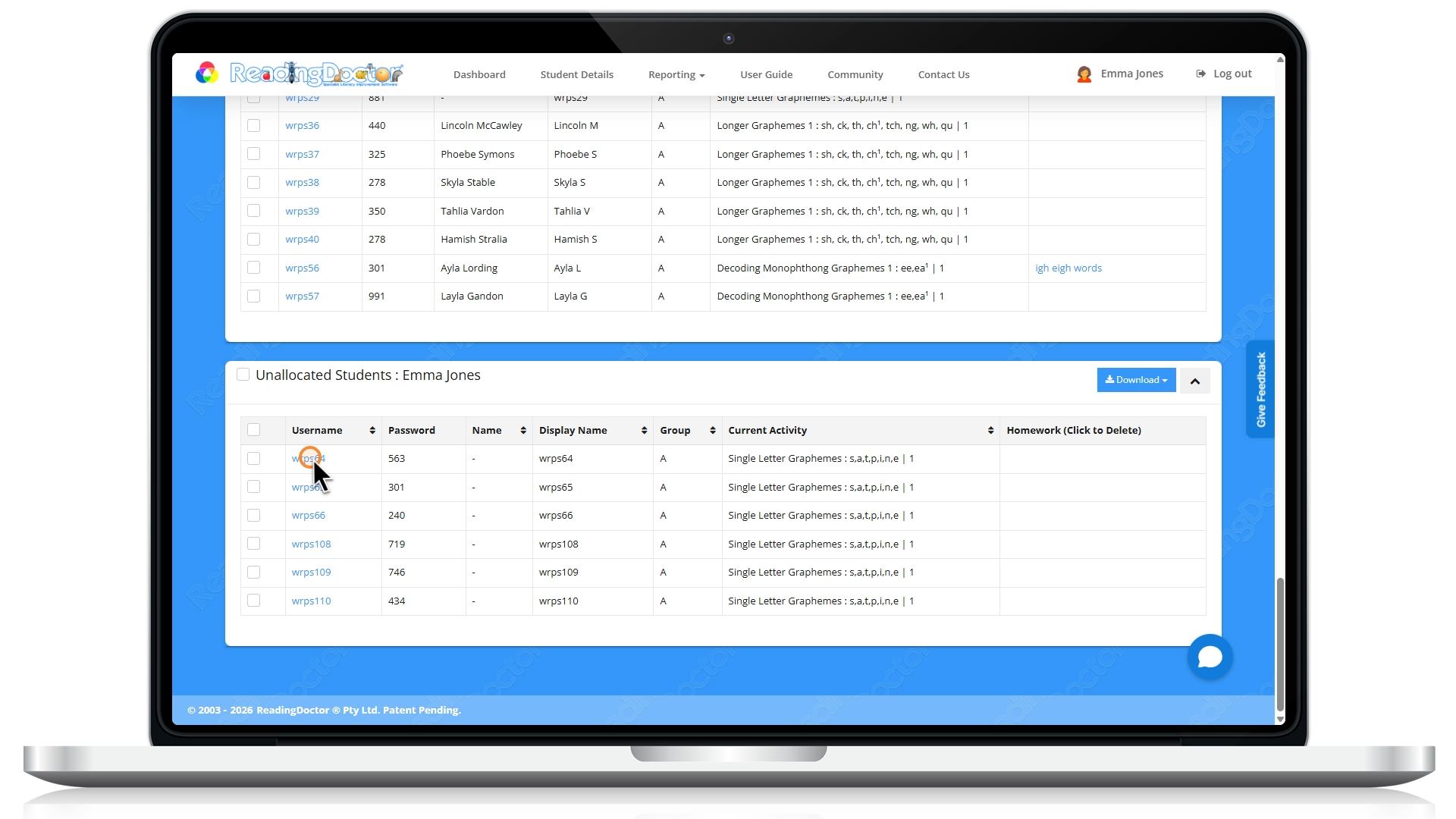
- Scroll down through the classes until you reach the last class, which will be called, 'Unallocated Students' (this will only be visible if you have spare licences). Then click on the Username you would like to use for your new student:
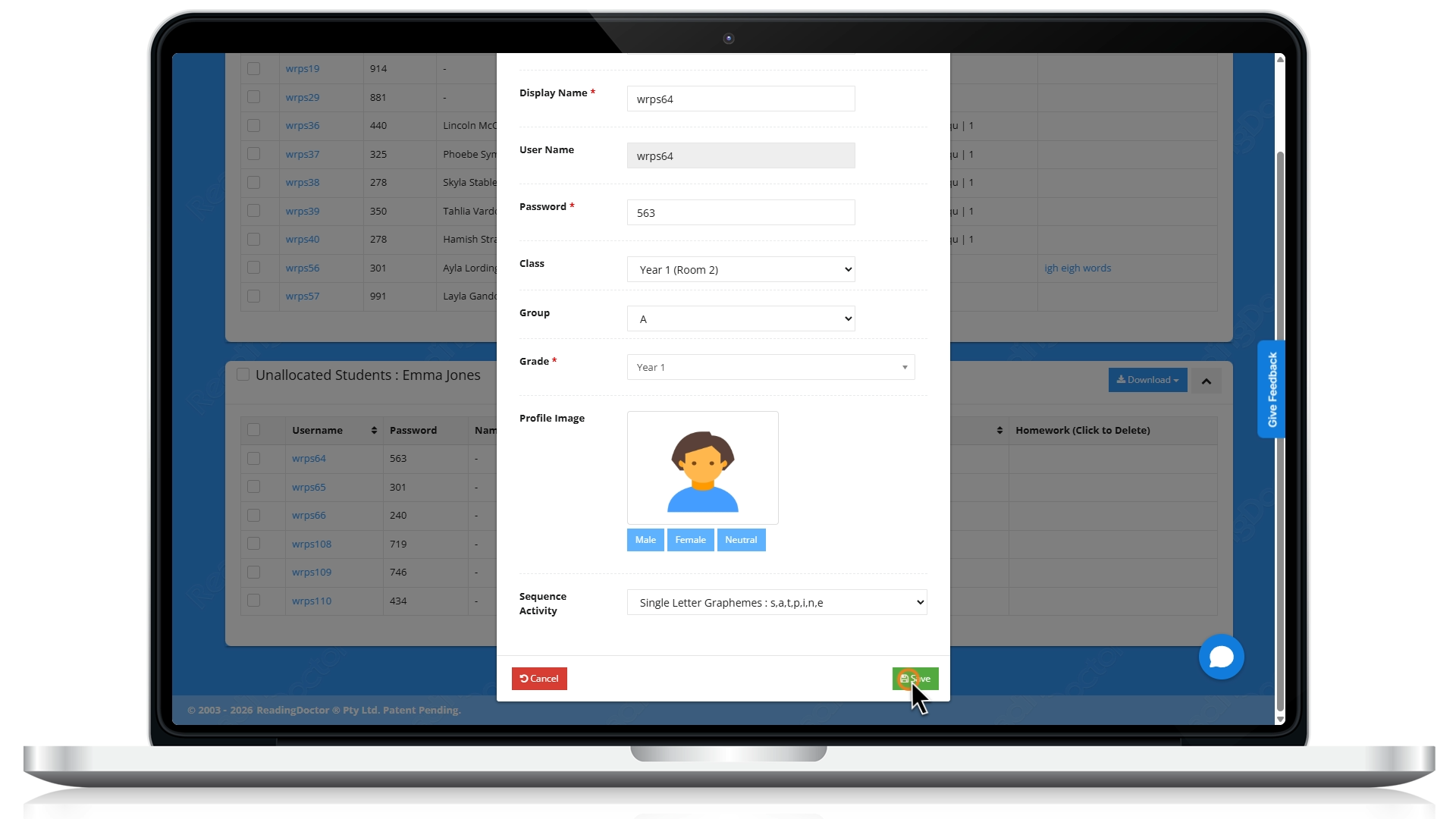
- Enter the new student's details, allocate them to their new class and grade, then click Save:
After saving, the student will appear in the class list, and they can now log in to their ReadingDoctor® Online activities at https://login.readingdoctor.com.
Please note: If you do not see an unallocated students class, ensure that 1) your school has some spare student seats (licences) to allocate to a new student and 2) ensure you are the ReadingDoctor® administrator. If not, your account does not have the required permissions to perform this task. In that case, please ask your school’s ReadingDoctor® Administrator to complete these steps.
Was this article helpful?
That’s Great!
Thank you for your feedback
Sorry! We couldn't be helpful
Thank you for your feedback
Feedback sent
We appreciate your effort and will try to fix the article