If students finish using Reading Doctor® or leave your school, you can remove them by resetting their accounts and allocating new students to the free spots. If you would like to add additional students to your account (rather than just resetting existing students), you will need to contact us to increase your school's license.
IMPORTANT! Resetting a student's account is permanent and cannot be undone. Please be sure that you no longer need the student spot or the data collected for that student before you proceed with the process below!
The steps described below are available for the school's Reading Doctor® Administrator only. Resetting a student's account will delete all data stored for that student and move the free student spot into the 'Unallocated Students' class, which is only visible to the Reading Doctor® Administrator. Your school's Reading Doctor® Administrator can then move the free student spot to a new class.
Here's how to delete (reset) a student, so their licence can be used for a new student:
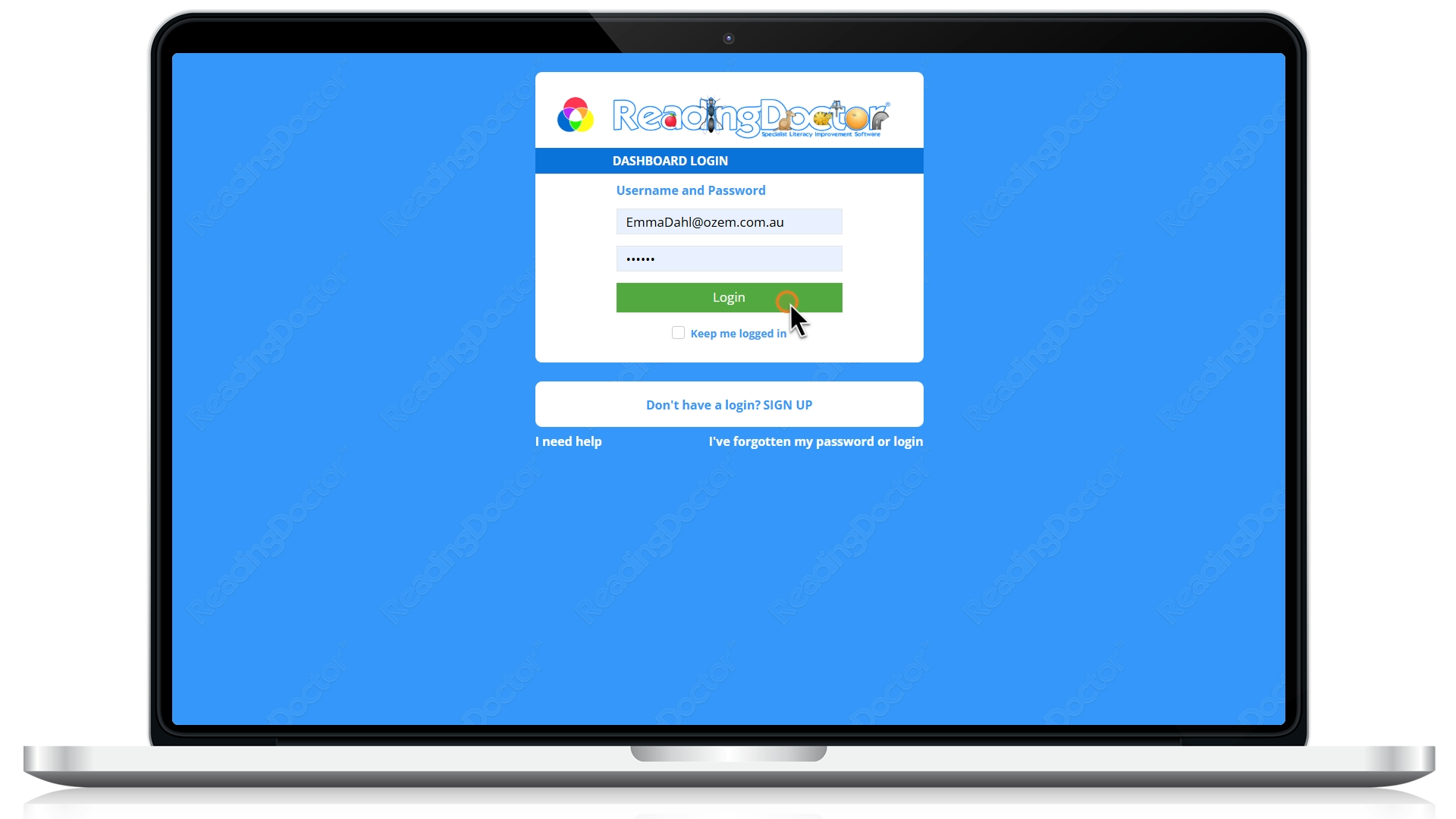
log in to your dashboard at https://dashboard.readingdoctor.com.au:
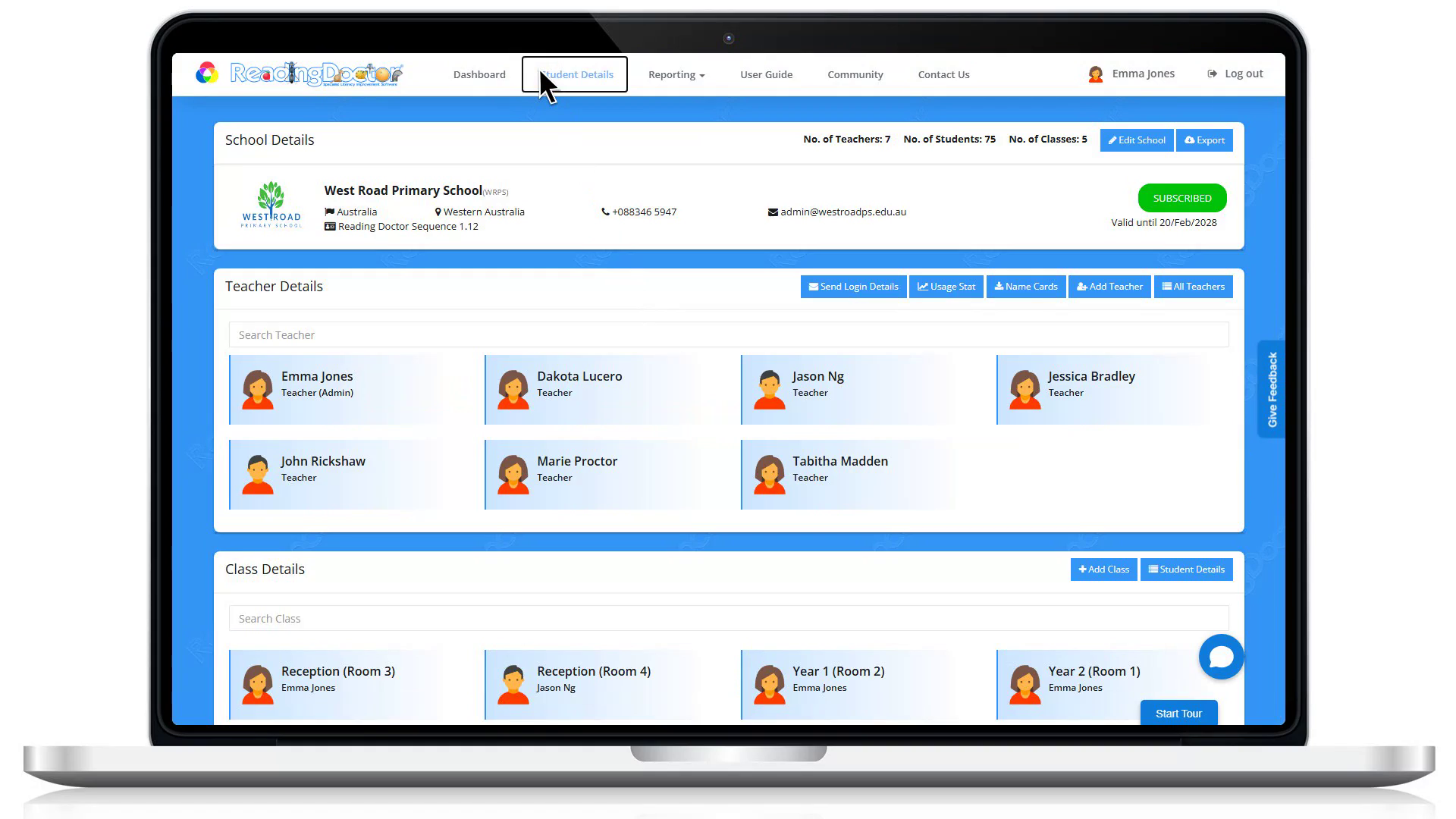
Click Student Details:
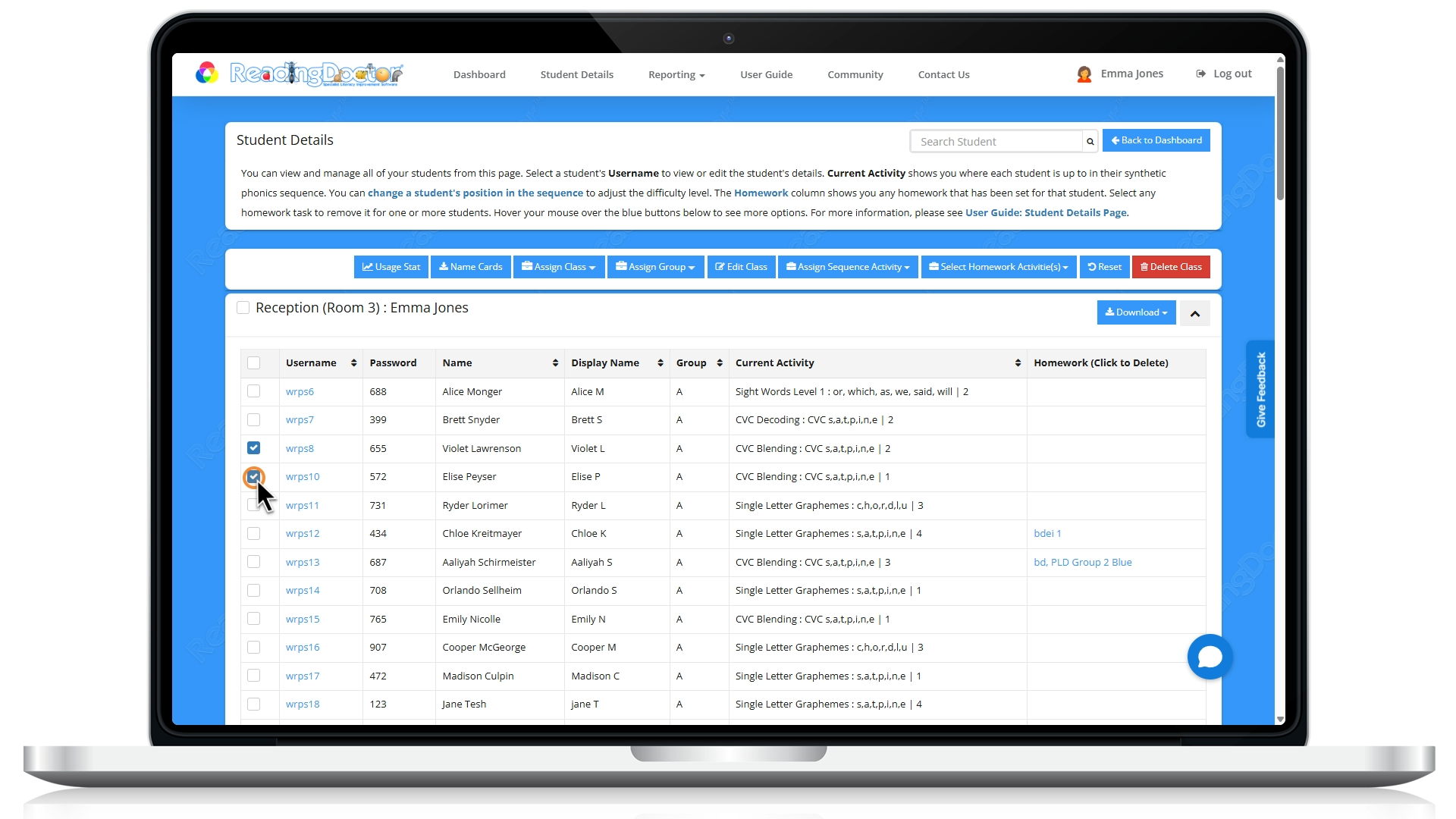
Select the student you would like to reset:
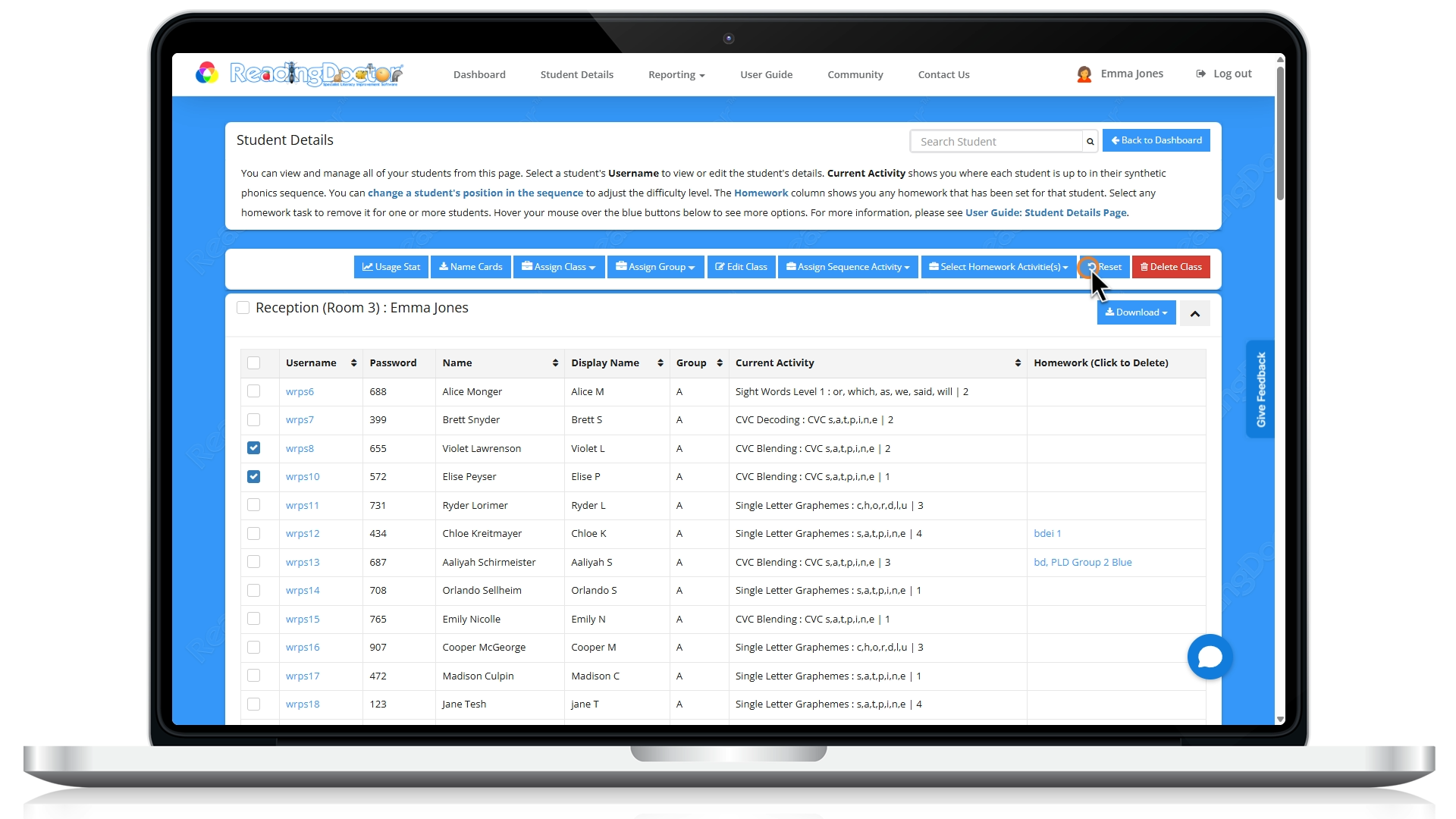
Click 'Reset' (warning - this action is permanent!):
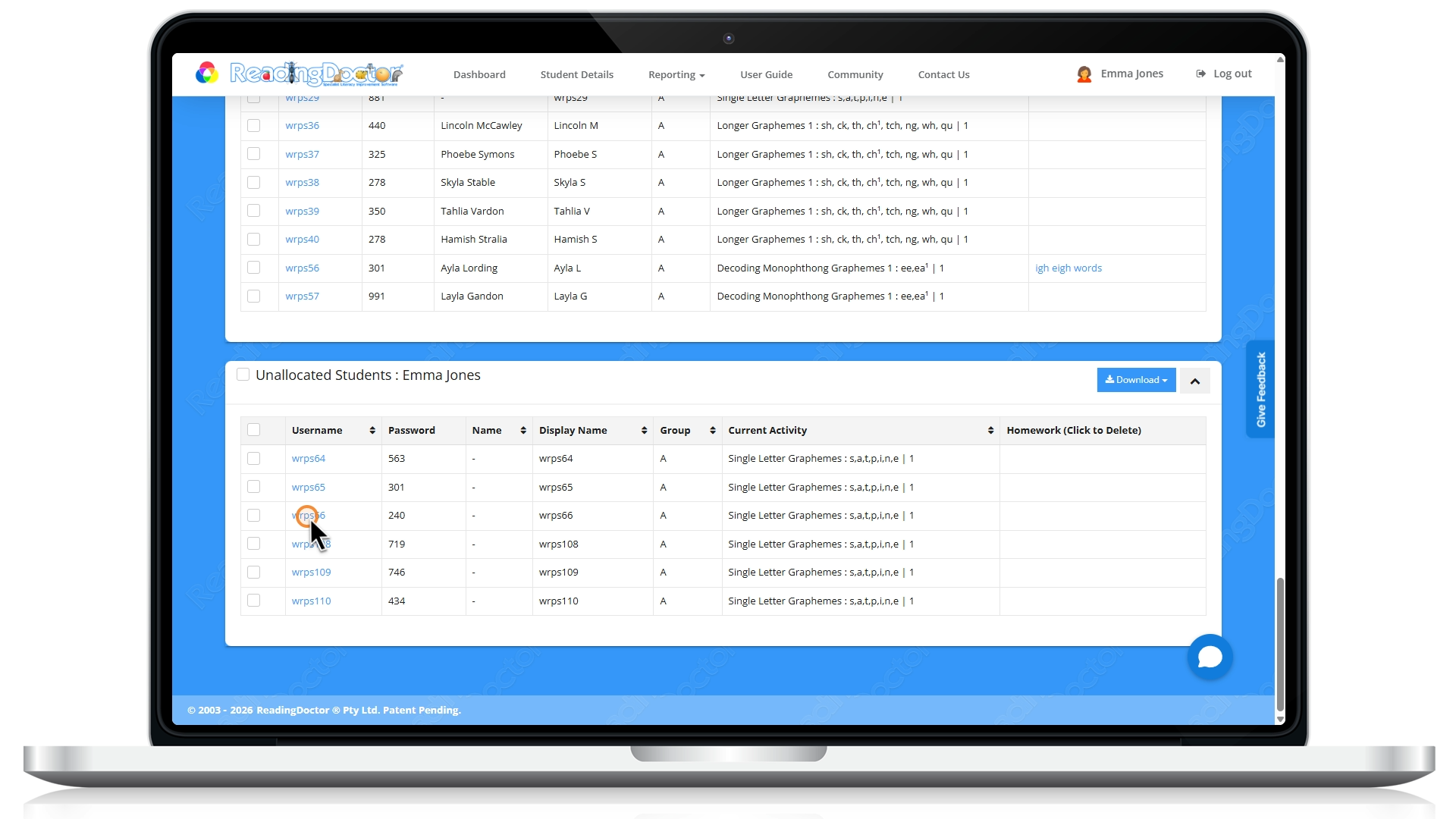
Update the student details and allocate students to classes for the account/s you have reset (they will appear in the last class, called 'Unallocated Students', at the bottom of the 'Student Details' page):
Was this article helpful?
That’s Great!
Thank you for your feedback
Sorry! We couldn't be helpful
Thank you for your feedback
Feedback sent
We appreciate your effort and will try to fix the article